Step 1: Add an Additional Hard Disk for Oracle ASM Disks.
#
Return to the main VMware Workstation Pro window.
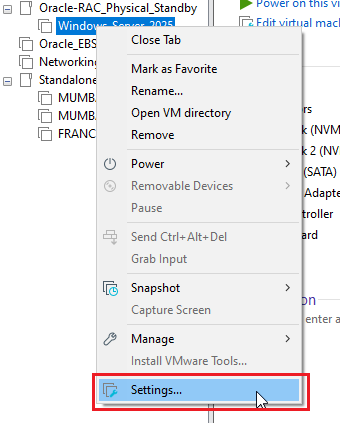
Locate your new VM from the Library and select it. (Windows Server 2022)
Right Click and Select Settings.
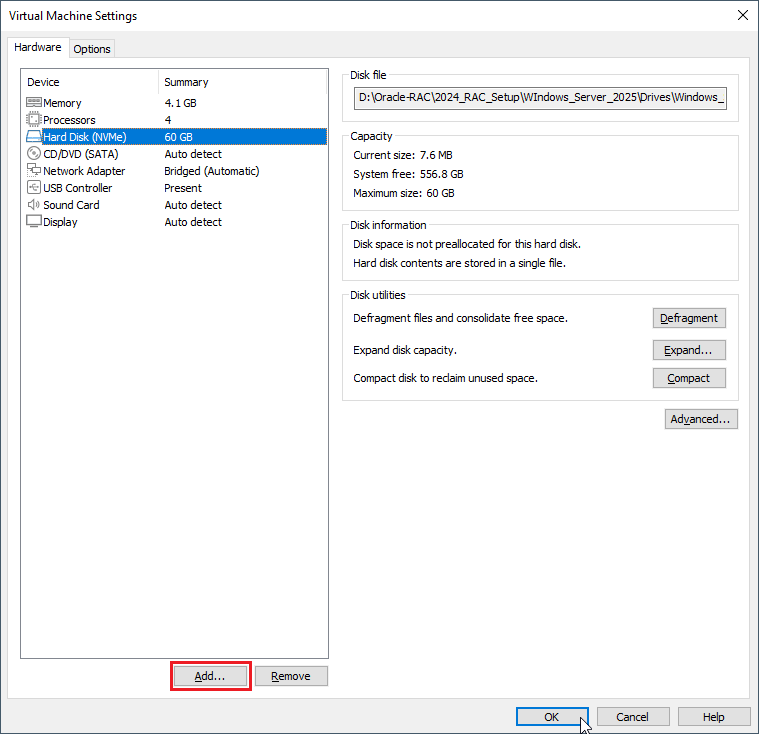
In the Virual Machine Settings Window, Click Add.
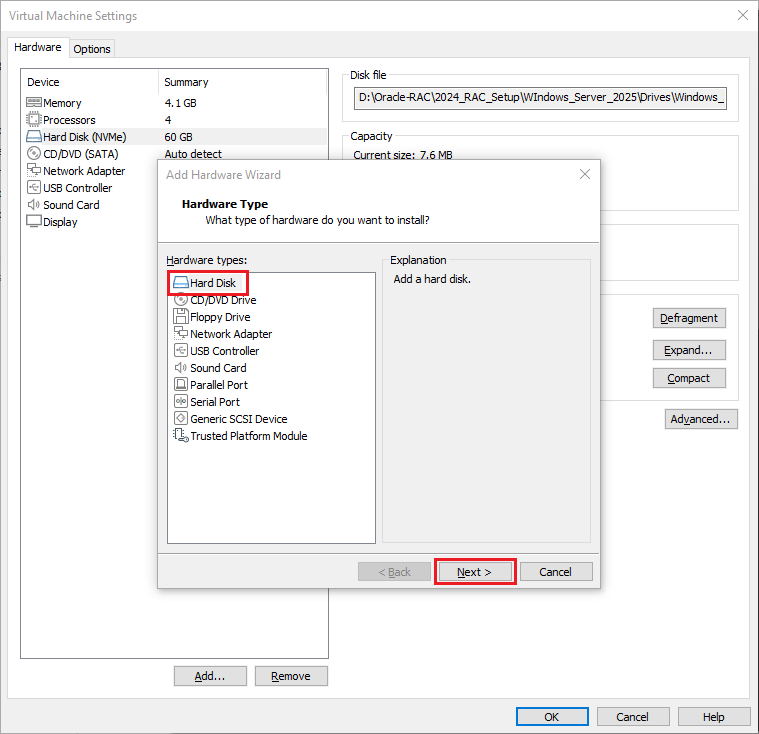
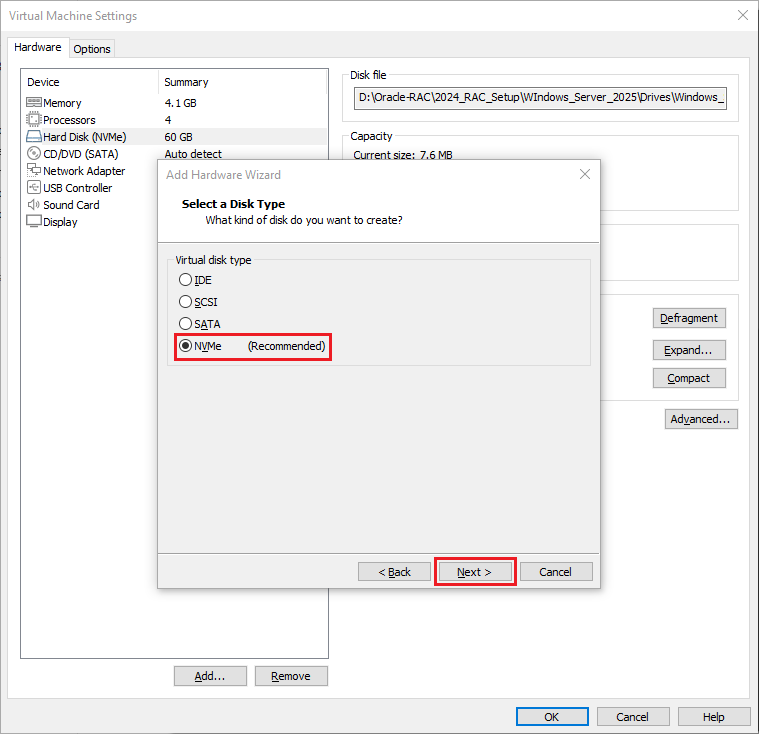
In the Add Hardware Wizard Window, select Hard Disk. Click Next, select NVMe and Click Next
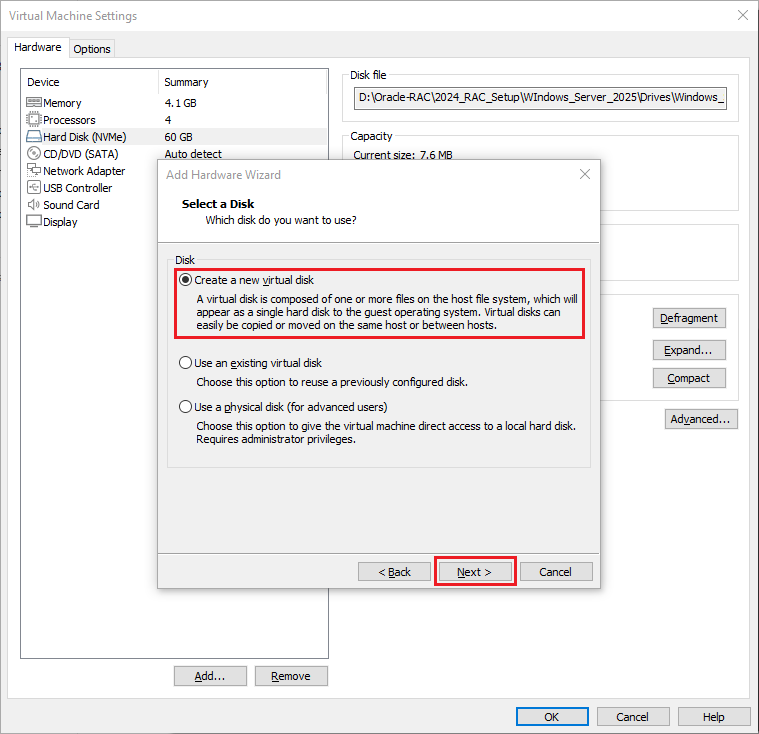
In the Select a Disk window, choose Create a new virtual disk. Click Next.
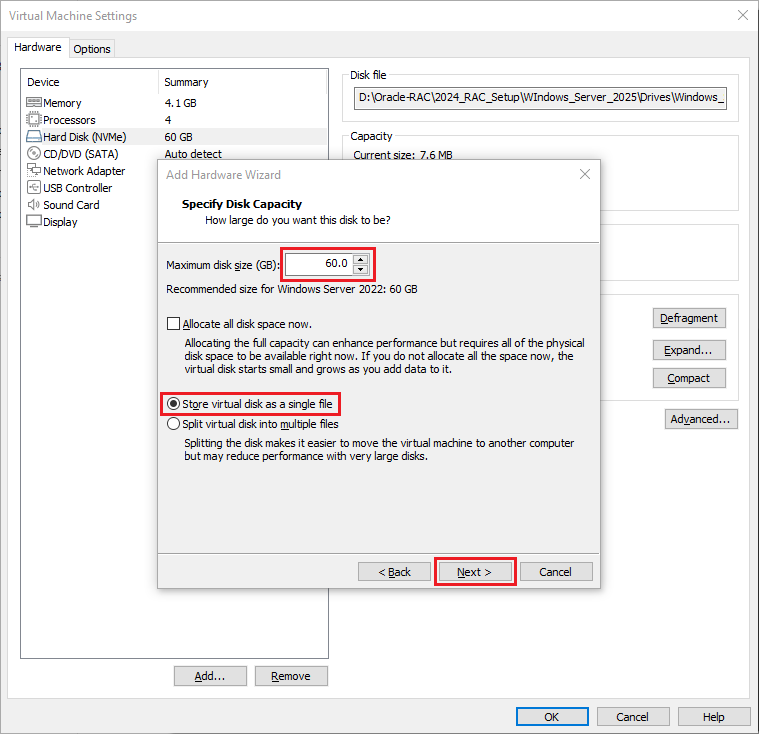
In the Specify Disk Capacity window, choose a disk size appropriate for your VM. 60 GB is recommended.
Select Store virtual disk as a single file for simplicity (you may also choose Split virtual disk into multiple files if needed).
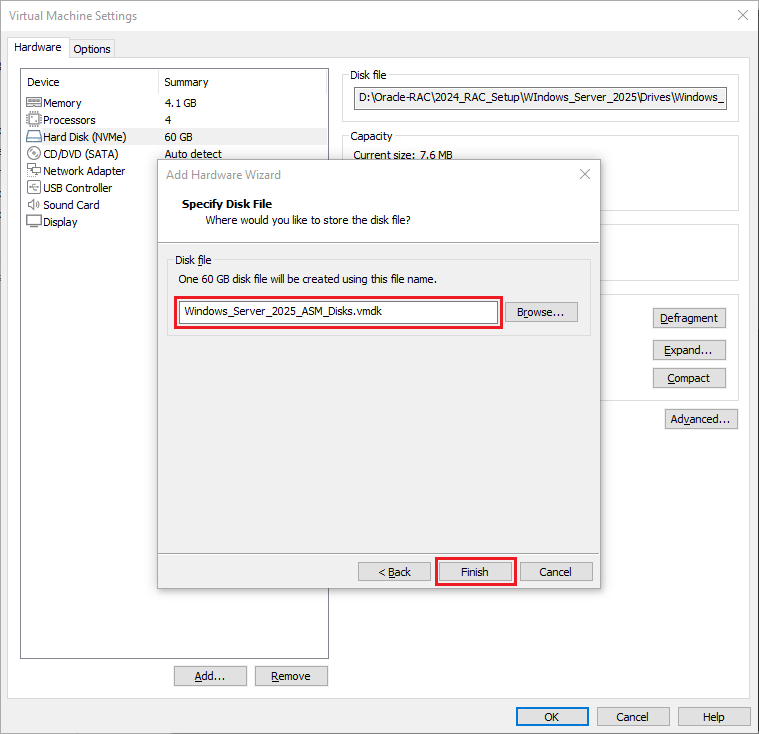
In the Specify Disk File window, choose a disk file location of your choice.